TL;DR
Many CPU specs list a high core count without showing which are performance cores (P-cores) and which are efficiency cores (E-cores) unless you dig into specifications.
E-cores are not suited for heavy workloads, and Windows sometimes fails to assign tasks to the performance cores correctly.
Windows systems running VMware Workstation fail to identify the workload and dedicate E-cores to the VM instead of P-cores. Manually configuring which core should be used in the configuration file solves the issue (along with proper optimization).
Understanding Intel hybrid CPU architecture
A bit of history and context
Alder Lake was the 12th CPU generation Intel released in 2021 and the first introducing their hybrid CPU architecture mode. The introductory white paper released along Alder Lake is available here.
Intel integrates two types of cores in their CPU die* called performance and efficiency cores.
Atom cores and E-cores
Intel Atom was first used for netbooks and as of today is still seeing some use in old IoT and Network Telecom. They’re currently being replaced by ARM and RISC-V for embedded devices and low power consumption.
E-cores are not technically atom cores, but they are deeply linked in their architecture to each other.
| Core | Description |
|---|---|
| Performance | ”Classic” core, meant to handle heavy tasks. |
| Efficiency | Low consumption cores capable of handling light processes during important overall workload, allowing for performance core to avoid changing context. |
*Mapping of an Alder Lake-S CPU 8/8 Die
.jpg)
The goal is to maximize the number of cores on a die, and taking advantage of multi processors to optimize workload with more finesse using E-cores for lighter workload.
That's what they said
Actually, if Intel didn’t add E-cores on their die to make use of every space available, AMD would be crushing them performance wise. I must recognize that Intel is less power consuming than AMD for light workload/idle.
Performance difference between cores
This is the core of this subject. Pure performance wise, williamlam made a little post showing that P-cores are almost twice the power of E-cores.
As for latency, I did not benchmark the difference when I used to deal with Intel hybrid architecture but it is notably worse, to the point it can become very frustrating (source : me).
CPU orchestrator and OS scheduler
Hyper-threading on P-cores and E-cores
As of today, E-cores does not support hyper-threading contrarily to P-cores.
The CPU orchestrator ITD (Intel Thread Director) and the OS scheduler need to ensure the architecture design is working as intended. ITD is using telemetry on threads to indicate which ones are triggering heavy workload to the OS, which then efficiently dedicate cores to each task.
-
Linux systems seems to prefer loading P-cores in priority and then delegate tasks on E-cores.
-
On the other hand, Windows’ approach depends on the power settings of the computer, and the process’s categorization when started. The Windows scheduler documentation is available here.
Note that Intel categorizes with classes which are corresponding to QoS (Quality of Services) for Windows.
| Informal Class | Microsoft QoS | Description | Technical Interpretation | Target Core |
|---|---|---|---|---|
| Class 0 | ThreadQosClass = Low | General workload | Low-IPC, low-load, scalar | Balanced |
| Class 1 | ThreadQosClass = Medium | AVX/AVX2 vector workloads | High compute, moderate IPC | Prefer P-core |
| Class 2 | ThreadQosClass = High | AVX-VNNI or ML inference | Heavy vector & memory ops | Strong P-core preference |
| Class 3 | ThreadQosClass = Eco / Background | I/O-bound or idle | Low utilization, sleep-heavy | E-core or deprioritized |
table originally generated by Gemini, later edited
AVX instructions
Advanced Vector Extensions (AVX) are dedicated set of instructions that are made to make complex operations (password cracking is a valid example). Thus, they are often used when a complex tasks is required and are prioritized for P-cores by the OS.
AVX-VNNI is a specific set of instructions particularly fitted to accelerate int8 matrix multiply-add operations. These are used a lot for inference and mostly AI oriented operations. More information here.
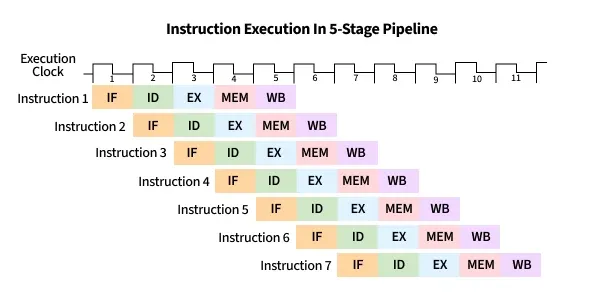
The telemetry doesn’t only rely on checking which instructions are used, but they have an impact on IPC (Instruction Per Cycle). These AVX instructions with high IPC benefits from filling the cores pipeline. P-cores have deeper pipelines than E-cores and thus are better fitted to handle these instructions.
Pipeline visualisation for a CPU core
VMware workstation, a practical example of flawed execution
Virtualization is a deep subject, and we have the opportunity to scratch one of its many fields. Let’s understand how is Windows wrongly categorizing VM’s as low priority processes and assigning them to E-cores. But first, we need to grasp why is that such a bad thing for us users.
In this case, we will be only focusing on attributing the appropriate cores. You can take a look at optimizing VMware Workstation VM if you’re interested in the subject.
We have to distinguish VMware Workstation process (vmware.exe) to the VM process itself (vmware-vmx.exe).

The core problem is Windows associating your VM to a background/idle/low priority process. They are multiple reasons to that, such as :
- Intel telemetry isn’t catching any costly instruction since they are converted by the VMware hypervisor unless Intel VT-x is activated (which is unlikely*).
- Windows doesn’t not measure any difference in the host environment apart from resources used concerning VMs. Everything is kept inside the VM like a black box to your host OS. As a result, VM processes are associated with background processes and delegated to E-cores.
- Any power mode other than performance prioritize heavily E-cores usage over P-cores for power consumption purposes.
*Windows settings, security and optimization
Since default Windows configuration has Hyper-V enabled, you’re likely already running your OS in an hypervisor. Nesting virtualization with multiple hypervisors already reduces performances, but also prevent you from using Intel VT-x (or AMD-V) in VMware.
Disabling Hyper-V
In order to enable VT-x, you need to disable Hyper-V.
Enforcing proper P-cores assignment to your VM(s).
Multiple solutions are available when you want to specify which cores should be used :
Usepowercfg
powercfg /powerthrottling disable /path "C:\Program Files (x86)\VMware\VMware Workstation\x64\vmware-vmx.exe"Example for 32 bits workstation path
- This first solution requires admin privilege, which you might not have if you’re work environment has some safeguards around your actions.
- It is reboot proof but not update proof (21H2 and 22H2 updates had reset powercfg).
Change windows power settings
This solution is the most “accessible” however it’s not the most precise to ensure your scheduler will give P-cores to your VM. Not recommended but it’s important to know that this impacts scheduler’s behavior.

Changing your VMX configuration file
Let’s say you have 2 P-cores and 8 E-cores. You’ll end up seeing 12 cores (P-cores are hyperthreaded), 0-3 are your P-cores.
What you can do on a virtual machine is to specify which cores must no be used in the .vmx configuration file directly by specifying the processors.
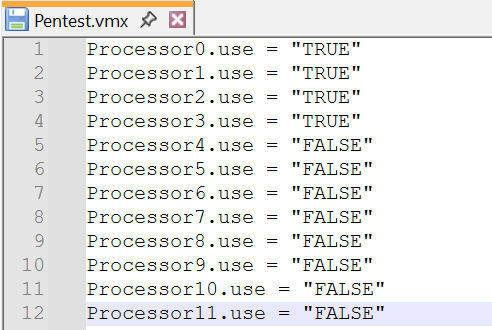 This solution is permanent and tied to the VM’s settings you chose, not global.
this does not mean your OS is dedicating exclusively these cores to your VM process.
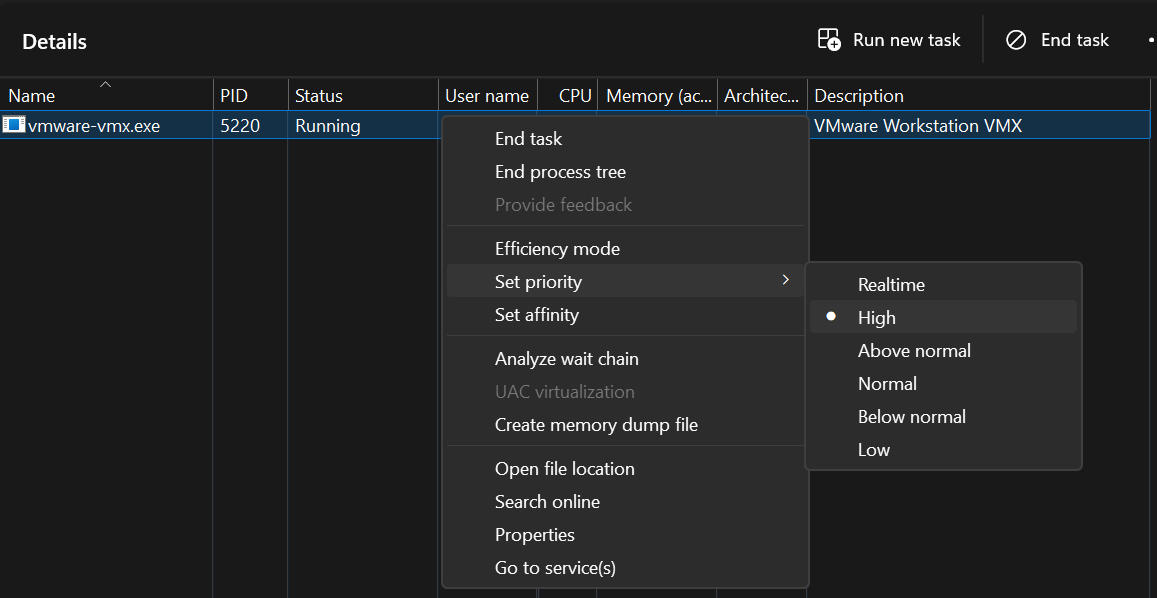
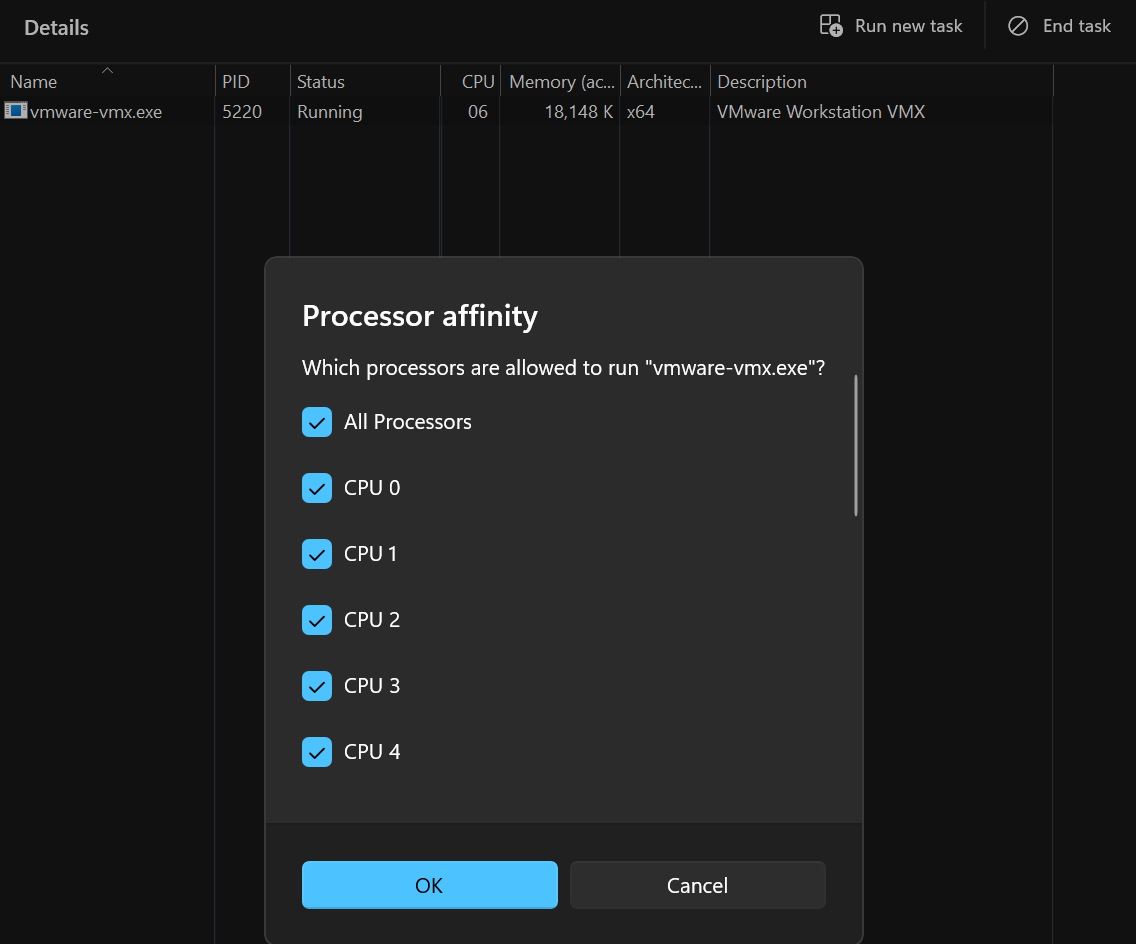
Alternatively, you can manually set Priority and affinity to your vmware-vmx.exe processes. Priority set to high will effectively dedicate P-cores to your VM, and affinity gives the same result as setting your VM configuration file.
Setting up High priority in Task Manager → Details → Right click on process
Processor affinity button Box after choosing “Set affinity”
Best option overall
This solution is the one I would recommend. This does not involve changing critical settings to the computer and is persistent for the VM if done through the configuration file.